The right IPA.
The right account.
Assign one IPA to each account, with up to 25 account slots. Choose a new file when an app version changes; future installs and renewals follow the saved assignment.
One Windows app for your iPhone’s IPA library. Install, renew, and manage your apps from your desktop—or your own private Discord bot.
BUILT AROUND YOUR WORKFLOW
Keep files, accounts, and renewal status together. Start on USB, then add automation at your own pace.
Assign one IPA to each account, with up to 25 account slots. Choose a new file when an app version changes; future installs and renewals follow the saved assignment.
Profile-only renewal can avoid uploading the full IPA. Known expired or rejected profiles and pending IPA changes can fall back to a full installation.
How renewal worksOpt into renewal every six days. Checks run at Windows sign-in and every 15 minutes. Missed a date while your PC was off? Overdue work waits for a usable connection.
Your PC must be awake and your Windows user signed in.Use paired USB, configure local Wi-Fi, or establish a Tailscale remote tunnel before leaving. The app prefers an authenticated local route when available.
Connection requirementsSetup checks, job history, queued work, safe cancellation, backups, and redacted diagnostics help you troubleshoot. Live service status keeps the desktop informed.
Explore recovery toolsA LOOK INSIDE
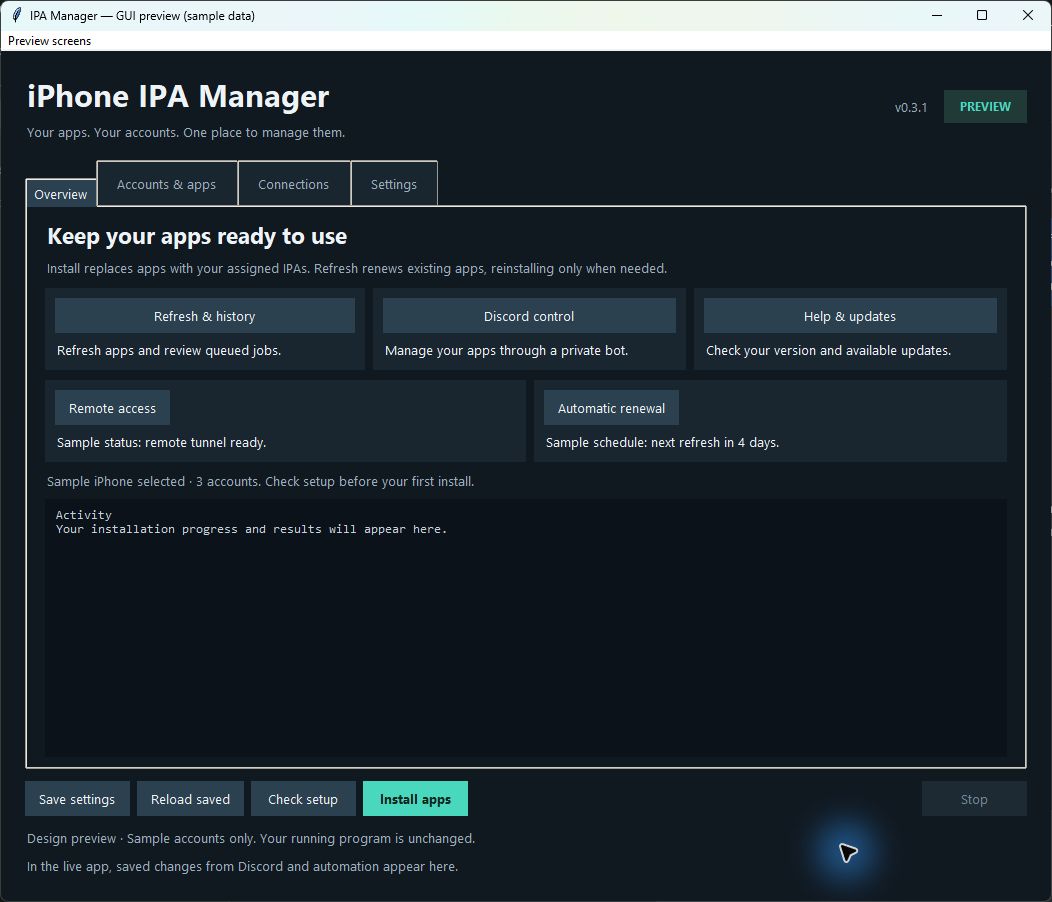
Actual application screenshots, using sample accounts. Select a screen, then click the image for a closer look.
YOUR PC. YOUR BOT.
Check status from your phone. Pick an account and file with autocomplete. Start an installation or renew your assigned apps.
The optional bot runs on your Windows PC and accepts commands only from your configured user, server, and channel. Desktop changes and Discord commands use the same saved assignments.
Set up your private botYour PC does the work and must stay awake and signed in. The bot cannot install from the cloud.
/panel
Open the interactive control panel.
/accounts
See account numbers and assigned apps.
/files
Browse IPAs in your managed folder.
/inbox
Select an account and file, save the assignment, and install it.
/assign
Change an account’s saved IPA assignment.
/sideload
Fully sign and install all apps or a selected account.
/refresh
Renew assigned apps, with a full-install fallback for known profile failures.
/status
Check connections, running version, and job progress.
/autorefresh
Manage automatic renewal scheduling.
/login
Add an Apple account with follow-up verification. Optional; local sign-in is recommended.
/login_cancel
Cancel an unfinished Apple sign-in.
/queue
Queue work until a usable connection is available.
/dashboard
Review verified outcomes and queued jobs.
/history
Review past runs and their results.
/retry
Queue full installs for unfinished accounts with unchanged assignments.
/stop
Request safe cancellation of the active job.
/check
Run setup checks.
/settings
View or change supported preferences.
/backup
Export assignments and preferences, or confirm a restore.
/updates
Check official releases and download information.
/update
Prepare a verified update, activate it, or roll back.
/diagnostics
Export redacted health information.
/maintenance
Check disk space or clean old logs.
/help
Read command guidance.
No matching commands. Try “install” or “status”.
START SIMPLE. BUILD FROM THERE.
You’ll need Windows 11 x64, an iPhone, a USB cable, Apple device software, an Apple account, and an IPA you’re entitled to install.
Run the per-user installer, or extract the portable ZIP to a permanent folder. No Python setup is needed.
Install Apple’s device software. Connect over USB, unlock the phone, approve Trust This Computer, then choose Connections → Pair connected iPhone.
Select an IPA folder. Add your Apple account, complete verification, and assign an IPA. Save your settings.
Run Check setup, then Install apps. After the first USB install works, add Wi-Fi, Discord, or automatic renewal.
INSTALL ≠ REFRESH
A full installation signs and transfers the assigned IPA. A refresh tries to renew the app’s provisioning profile, which can be much smaller than the app itself.
For known profile expiry or rejection, or a pending app change, renewal can use a full-install fallback. Unclear connection failures stop for inspection rather than blindly reinstalling.
Understand jobs and outcomes
Connection unavailable? Wait for a usable route.
No guarantee of indefinite app
availability.
CHOOSE YOUR CONNECTION
Pairing and iOS service availability matter. A VPN provides a route; it doesn’t bypass the phone’s requirements.
The starting point for trust, pairing, and your first installation. Keep the iPhone unlocked during setup.
Enable Apple Wi-Fi sync and install the documented bridge service. A usable authenticated local route is preferred.
Prepare a ready tunnel on home Wi-Fi before leaving. Keep Tailscale connected. Remote cold starts and uninterrupted roaming are not guaranteed.
Mobile speed depends on your PC’s upload, mobile signal, latency, and relay use. Read the connection guide and limits →
READY WHEN YOU ARE
Download the public Windows build.
Free, open source, and built on the work of the
sideloading community.
Recommended: the per-user Windows installer.
Download installer Download portable ZIPBuilds are unsigned. Download only from the official repository. Apple drivers and the optional Wi-Fi bridge are separate prerequisites; their installation may require an administrator.
A FEW THINGS TO KNOW
Need more detail? The project’s guides cover setup, privacy, troubleshooting, and updates.
Troubleshooting guideNo. Apple’s provisioning, certificate, device, App ID, and app limits still apply. An account slot in the manager is not an extra allowance from Apple.
Nothing runs while the PC is off, asleep, or signed out. The opt-in scheduler checks at sign-in and every 15 minutes; an overdue renewal waits for a usable connection. Known expired profiles can trigger a full-install fallback. Keep the assigned IPA available.
Yes. Save completed IPA files into your managed folder using your preferred transfer tool. Choose the file in the desktop app or use Discord’s account and filename autocomplete. This project doesn’t supply IPA downloads.
No. Start with the Windows app and USB. Discord is optional remote control. Tailscale is for the experimental remote connection workflow, not a requirement for USB installation.
Settings are stored in your Windows user profile. The Discord token uses Windows user encryption; the native backend integrates with Windows Credential Manager for Apple credentials. Prefer local Apple sign-in. Optional Discord login forms are processed by Discord and are not end-to-end encrypted. Read the privacy guide.
The app’s per-user installer, startup, login, and normal jobs run without launching an elevation prompt. Installing Apple device software or the optional fixed-purpose Wi-Fi bridge is a separate administrator task.
Not reliably. Remote access depends on an established tunnel and services that iOS keeps available. Prepare the tunnel on home Wi-Fi before leaving. Even then, roaming and long-lived connectivity are not guaranteed.
Use Help & updates in the desktop app or /updates in Discord. Read
the
update guide
before replacing a running build. For problems, use redacted diagnostics and the
issue tracker; never
post credentials or pairing records.